Article · Timesheets
Filling in your timesheet
Updated 6 November 2026
A practice copy. Nothing here is saved. In Tyto, you click a cell to add or change hours.
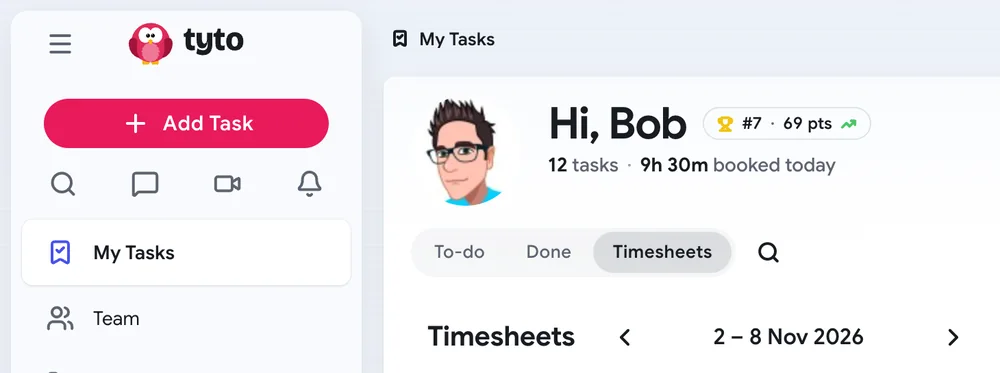
Find your timesheet
- Open My Tasks.
- Choose the Timesheets tab (next to To-do and Done).
- You see this week, Monday to Sunday.
- Use the < and > arrows to go to other weeks. Press This week to come back.
Know when you are done
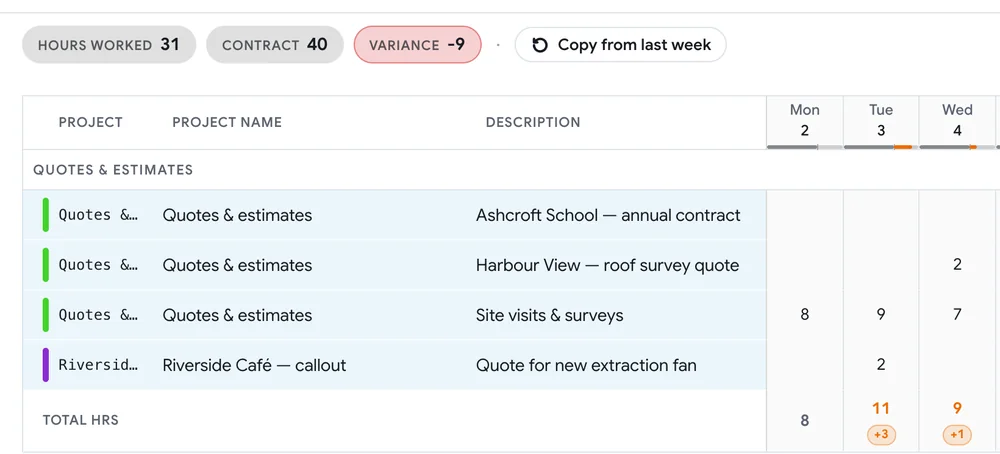
The top of the page shows three numbers:
- Hours worked: the hours you have added this week.
- Contract: the hours you should work each week.
- Variance: the difference between the two.
- -8 (red): you are 8 hours short.
- +2 (red): you are 2 hours over.
- On contract (green): your week is complete.
Your daily target is your contract divided by 5. For a 40-hour week, that is 8 hours a day. A day over the target turns amber.
Add hours for a project
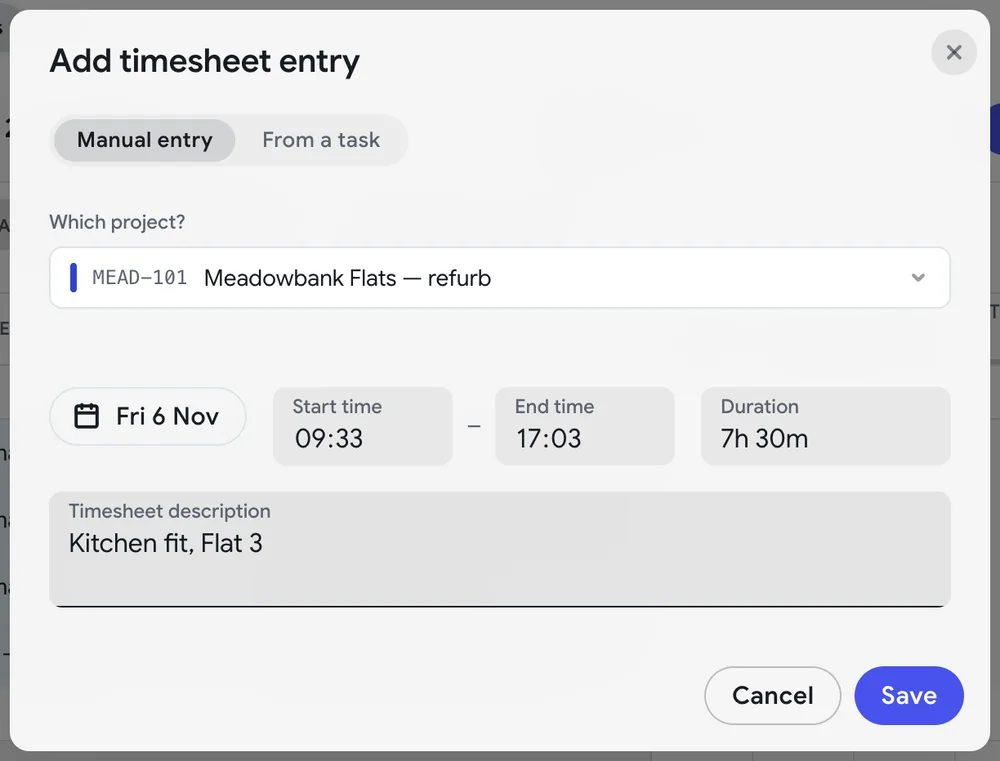
- Press Add timesheet entry. Or click an empty cell on the right day.
- Stay on Manual entry.
- Pick the project. Type part of its code or its name.
- Pick the date.
- Type the Duration:
7.5means 7 hours 30 minutes.7h 30m,450mand7:30also work.
- Add a Timesheet description if your team uses one.
- Press Save.
- The project decides if the time is billable or not. You do not choose.
- Add each day as a separate entry.
Leave, training and other non-project time
- Your firm's list has codes for time that is not on a client project. For example: training, annual leave, sick leave, internal work.
- Your firm may call this time Overhead or Non-billable.
- Some of these rows are on your timesheet every week, at the bottom. Click a cell on the right day to add hours.
- If you cannot see the code you need, use Add timesheet entry and search for it.
Add hours for a project task
Some projects in Tyto have tasks. You can add time to a task.
- Press Add timesheet entry.
- Choose From a task.
- Pick the task. Or type a new title to create a task.
- Pick the date, type the duration, and press Save.
Task rows have a blue colour. Rows you add by hand have a green colour.
Use a timer
- Open a task and press Start. Press Stop when you finish.
- When you stop, the time goes onto your timesheet by itself.
- If someone else is already working on the task, the button says Join. Each person's time goes on their own timesheet.
- Starting a new task stops the timer on your last task.
- A running timer does not show on the timesheet until you stop it.
- A timer does not stop by itself. Remember to stop it.
- You can start and stop timers on your phone. The time still goes onto your timesheet.
Pin the rows you use every week
- Move your mouse over a row. Press the pin icon.
- Pinned rows stay on your timesheet every week, even when they are empty.
- Your pins are only for you. They are the same on every computer.
- Press the pin icon again to unpin.

Copy from last week
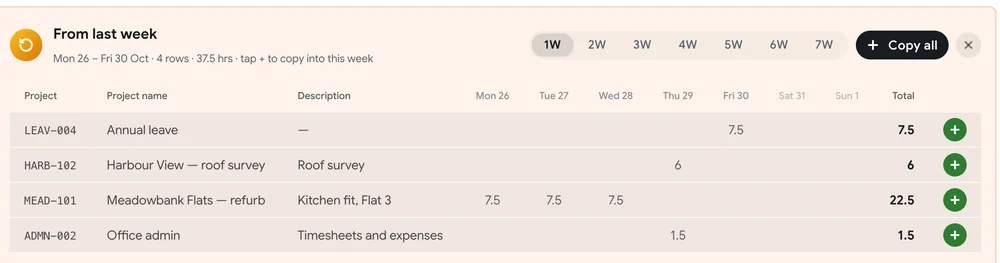
- Press Copy from last week. Last week's rows appear below your timesheet.
- To see an older week, choose 2W, 3W and so on.
- Then:
- Copy all: copies every row with its hours, onto the same days.
- + on one row: opens a new entry with the same project and description. You choose the date and hours.
- Change any hours that were different this week.
Change an entry
- Click the cell with the hours.
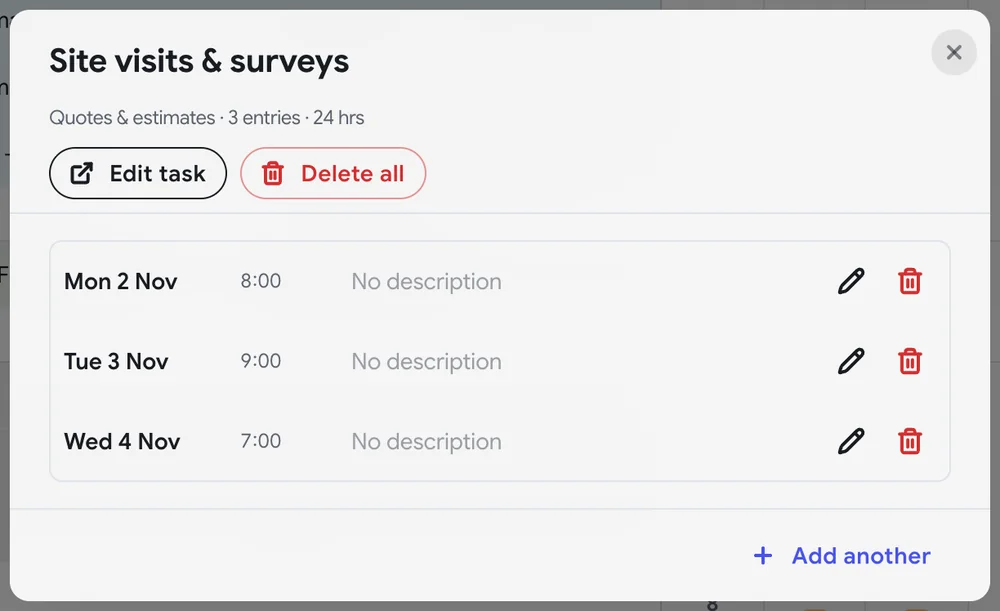
- If the day has one entry, it opens. Change it and press Save.
- If the day has more than one entry, you see a list. Press the pencil icon on the entry you want.
- You can change the duration, date, description and project.
Delete an entry
- In the list of entries, press the bin icon, then Confirm.
- To delete a whole row, click the row's name, press Delete all, then confirm.
- Delete all removes every entry on that row for the week you are looking at.
- There is no undo.
If your hours are over or under
- Tyto does not stop you saving more or fewer hours than your contract.
- Tyto does not lock weeks. You can change past weeks.
- Tyto does not send reminders.
- Your team leader can see your timesheet at any time.
- In your manager's weekly report, hours above your contract are listed in a separate section.
- Ask your team leader what your firm expects if your week is not on contract.
Who can see your timesheet
- You.
- Your team leader. They can look, but not change it.
- Your firm's admins. They can look and change it.
Questions
- A project code is missing. Ask an admin. They keep the list.
- The billable setting looks wrong. Ask an admin. It comes from the project.
- My contract hours are wrong. Ask an admin. If nobody has set them, Tyto uses 40 hours a week.
- Can I fill in my timesheet on my phone? Not yet. Use a computer. Timers on your phone still work.
- Still stuck? Ask us. We reply by email.